
Seller Id
The marketplace seller ID, which depends on the integration type and marketplace. It is used to distinguish integrations and is unique within the user account.
Client ID

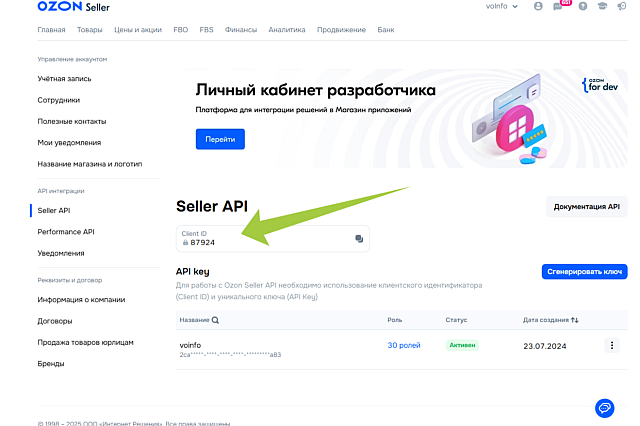
В поле Client ID скопируйте значение Client ID из раздела ЛК поставщика Озон. Настройки/API ключи.
> Для перехода из ЛК поставщика Озон, в правом верхнем углу, после клика на пиктограмме пользователя ЛК, в раздел Настройка, на карточку / API ключи. Далее скопируйте значение Client ID в соответствующее поле настройки интеграции Client ID.
- To obtain the Client ID value from the OZON supplier dashboard:
- Click on the user icon in the top right corner and select Settings
- In the left menu, choose Seller API (opens in a new tab)
- Copy the Client ID value and paste it into the corresponding integration setting field
Client Id

Client Id - available from the store manager
Dashboard ID

Идентификатор Личного кабинета Leroy Merlin продавца маркетплейс, доступен в правом верхнем углу после входа в Личный кабинет поставщика.
In the integration settings, save the API access parameter values for Leroy Merlin, Supplier Dashboard
- Dashboard ID (Client ID) - available in the top right corner, next to the organization name, in parentheses
Campaign ID

Из ЛК продавца ЯндексМаркет, в меню слева ЛК ЯМаркет [название магазина]/Настройка API bp на вкладке "Отправка запросов Маркету" копируем значение ID кампании:
- проверьте наименование магазина в правом верхнем углу ЛК
- в поле ID кампании, campaign_id настроек интеграции, копируем значение "ID кампании, campaign_id"
From the Yandex Market Seller Portal, for the store - Settings / API and Modules - on the Integrations tab:
- in the integration settings field, copy the Campaign ID value
> To open the Settings menu - click on the Name/Login in the top right corner of the Yandex portal, select the dashboard and store name, and then Settings.
Dashboard ID

Для подключения интеграции скопировать данные
- ID Личного кабинета - ID Личного кабинета в настройки интеграции приложения в Личный кабинет продавца СберМегаМаркет, в разделе Настройки/Настройка интеграции по API.
To connect the integration, copy the data
- Dashboard ID - Dashboard ID in the application integration settings in the Seller Portal of MegaMarket, under the Settings/Integration Settings via API section.
Seller ID

The ID of the marketplace seller.
Warehouse ID

В поле ID - идентификатор сохраняем ID склада поставщика из раздела ЛК Wildberries
Маркетплейс / Мои склады.
> При наличия нескольких складов для отгрузки FBS выбор *Склада маркета доступен при настройке задачи интеграции.
> Для настройки интеграции по FBO(FBW) и или при невозможности использования значения ID склада продавца, допускается использование произвольного значения идентификатора в рамках списка интеграций.
In the ID - Identifier field, save the Supplier Warehouse ID from the Wildberries Seller Portal section
Marketplace / My Warehouses.
> If you have multiple warehouses for FBS shipments, the Market Warehouse selection is available during integration task setup.
> For setting up FBO (FBW) integration or when the seller's Warehouse ID cannot be used, it is permissible to use an arbitrary identifier value within the list of integrations.
Table ID

Номер или название для создания локального Склада
Number or Name for Creating a Local Warehouse
Account ID

Supplier Code in Hoff System

Supplier Code in Hoff System
Supplier Warehouse Name

Profile Number

Номер профиля в ЛК продавца Авито, в меню слева.
Номер следует сохранить без пробелов.
To fill in the Profile Number setting parameter
- Copy the value from the Avito Seller Portal
- Profile Number
> Save the number without spaces.
- Profile Number
Main Account

В ЛК продавца AliExpress разделе Аккаунт / Настройки аккаунта
Основная информация - параметр Ваш ID.
In the AliExpress Seller Portal under Account / Account Settings
Main Information - Main Account parameter.